- copy
- paste
- enter
- forward
- back
- Zoom mic toggle[0]
- OSX screen left/right (activated by pushing the mouse wheel left or right).
- Volume up/down (on top of the mouse)
Screen left/right is the most important things I do with the mouse aside from the normal pointing and clicking. For the side buttons, copy, paste, and enter are the overwhelming winners. These alone probably reduce the back and forth between keyboard and mouse by half. I regularly forget that the other three are there.
In retrospect, the correct answer is to select whatever key combinations you end up alternating back and forth between your keyboard and mouse to enter and program it into your mouse. This will reduce switching, which is faster and reduces strain.
My keyboard (Ergodox EZ) has a “hyper” button on it, which is the combination of every modifier key on my keyboard. This lets me program shortcuts like ctrl+alt+shift+command+o, which is pretty easy to reach and guaranteed to have no collisions. I currently only use this for o (optimize imports) and i (indent document) in IntelliJ. It’s a neat trick, but the mouse stuff above has so far been more important to me.
Then again I’m also a manager now, so take that last bit with a grain of salt. I might do more keyboard wizardry if I was a full time engineer still.
0 - This was really useful right up until I built a custom zoom control box with toggle switches (with covers!) for my lights, camera, and mic. Now it’s unused, but I haven’t found anything I do commonly enough to justify putting in this spot. I need to make a post showing this off one of these days.
I have a programmable keyboard that I could use to achieve the same thing, but I really like having a dedicated device and find that I use it more than if it was just a function layer in QMK. IMO this is also one of the legit uses of individual key RGB on a keyboard beyond just bling-- you can color code keys.
I have a layer for mouse movement with wasd. On the same layer, I've bound hjkl to the arrow keys, so I can get vimish movement wherever. Below these keys on the same layer I have some browser navigation shortcuts.
I use evil-mode in Emacs. The key below my left thumb is control on hold, escape on tap, and it works beautifully. On my left thumb cluster, I have a key that's option (meta in Emacs land) on hold, and option-x on tap (so I can easily hit M-x in Emacs).
On another layer I have hotkeys to manage window tiling. I use Magnet for macOS; works fine for my needs. One thing I wanted that Magnet didn't have was a half-width-but-centered hotkey; I was able to build that into a macro on my keyboard.
Keyboard macros are a beautiful thing. QMK firmware is the best!
My layout: https://configure.zsa.io/moonlander/layouts/xK7zR/latest/0
I have a macro for ctrl+shift+v on my Keyboard since it's the Evolution (Linux mail app) shortcut for moving emails. I also have macros for ctrl+alt+left and ctrl+alt+right to switch desktops more easily.
I have a vim macro " I also sometimes think about implementing a keyboard macro that does a BnB combo in Skullgirls :). Maybe one day lol, but that's cheating and I wouldn't do it online (also I'd get screwed on whiff or block). Maybe I could use just Xautomation for that (that uses libXtest). But the most useful of all, by far: alias s='cd ..'
I use it as a qwerty keyboard but... I use the extra functions keys as "super" and "hyper" in addition to ctrl/shift/alt. I love japanese keyboards because the space bar is tiny so the modifiers left and right of the space bar are easy to reach.
The "super" modifier is only for shortcuts related to my window manager (switching virtual desktops / arranging windows / launching programs etc.).
The "hyper" modifier is for my custom macros/functions (which I call from Emacs).
It's nice because these additional modifiers never clash with any other shortcuts.
And as I type this I see in this thread I'm not the only one using a japanese keyboard this way.
Now... In this day and age I probably should get a custom keyboard or make my own keyboard but... Years and years ago it wasn't that easy to make your own keyboard so back then it made sense to go for the laziest thing that would provide me with more modifiers and with "easy to reach with the thumbs" modifiers (thanks to the small spacebar). And the lazy thing to do was simply to use a japanese keyboard.
Super handy.
https://brettterpstra.com/2016/09/29/a-better-hyper-key-hack...
1. I change platforms too frequently, so I cannot have a custom setup; and
2. when I try to run distributed with VNC or MSRemoteDesktop, there are too many conflicts when configuration, so it makes a mess.
If you only ever work on one computer, it is a great idea, but you will find it challenging to acclimate to another computer.
1. How often do people use 'home' and 'end' keys ? I don't, but I know quite a lot who swear by them. Do they actually increase productivity ?
2. Should caps lock be removed as a large button in the most valuable real-estate-area on the keyboard ? I literally never use it. Even when typing long ALL-CAPS sequences. I just use 'shift' instead.
3. Do you use space bars with both hands ? I only use space with the right, and IMO, it could be shorter.
But then, why stop there, just use two mice as such per hand and have the craziest developer desktop going.
Another article that has info upon one handed keyboards like the microwriter https://skippy.org.uk/home-made-keyboards-part-2-more-ideas/
Paired with a G15 keyboard with a plethora of buttons, which include shortcuts to my most common applications as well as switch desktops left/right.
Here are the best uses I've put extra mouse buttons to:
1. Double-click. Great for selecting word-at-a-time and really relieves the RSI. If you double-click the double-click button, it turns into triple-click, which selects paragraph-at-a-time.
2. Close window. I live the "window closing lifestyle". If I'm not slamming a browser tab, I'm closing an editor or Finder window—which I often opened by mousing to a link, icon, or existing window a split second before. In fact, I can get quite a furious window-closing hurricane going, targeting window after window, focusing each with a click and then hitting the close-window mouse button. It's a great way to clean up after finishing a task.
3. Option-click. I use this almost exclusively for clicking on a different application and hiding the previous one, a standard Mac behavior that becomes smoother by being one-handed. It also activates rectangular text selection in BBEdit, as a bonus.
4. Exposé/Mission Control. Hold a button, have all your windows flatten out, then mouse to one to bring it to the fore. I have several quicker ways of unearthing windows, but this is a nice fallback when all else fails.
Those are the big 4. I have extra buttons I've been auditioning for some other bindings like Open In New Window and Back, but what I really wish for are...
5. Grab-scroll. I had this with the old ADB Kensington Thinking Mouse driver. Hold down a mouse button, yank on some scrollable content, and the content would follow your mouse pointer, just like today's 2-finger trackpad gesture. If anybody knows how to set this up today, I'd be grateful to hear it!
6. Drag window. It seems like we're all looking for faster ways to arrange windows these days: tiling managers, grid snapping, hotkeys bound to specific positions. In my perfect world, I could drag a window anywhere I pleased but without the expensive targeting of the small draggable region first. If I could place my pointer just vaguely over a window, hold a certain mouse button, and drag the window thereby, I'd be thrilled. I've never managed to set this one up but would love to hear ideas.
Funny enough—and maybe this is just an artifact of Mac software design—I've never found so-called "right click" profitable enough to actually earn it a button. :-)
That being said I've used programmable keyboards extensively for macros when in sysadmin / ops roles in the past though, from simple one line commands and shortcuts, to "do 80% of work for me". Never used programmable mice though as the buttons seemed too fiddly / inconsistent for me to be 101% which one I'm hitting.
https://github.com/kmonad/kmonad
A couple of things
- Space Cadet Shifts
- Ctrl and Escape on Caps Lock
- RAlt + hjkl as arrow keys
- SPC + home row as number keys
In other words: every key that has a hold behavior also has a tap behavior. Several keys with tap behaviors also have hold behaviors for switching layers: home row left hand keys change the right hand to arrows, numbers, or symbols.
[0] https://stevelosh.com/blog/2012/10/a-modern-space-cadet/#s17... [1] https://keeb.io/products/iris-keyboard-split-ergonomic-keybo...
I don't do it every day, but creating a macro can help a lot in that situation.
I have a lot of Razer gear and also a few pieces of Cooler Master gear.
The real frustrations I have though involve disabling or changing buttons in deeper ways. For instance, I love the alacritty terminal, but it uses ctrl+shift+c and ctrl+shift+v to cut-and-paste. One of those buttons opens the dev tools on my browser, which I could tolerate if it didn't also scroll the browser to the top, losing my place. So disabling keys or remapping them in applications helps.
Another pet peeve is that I fat finger the "insert" button on a laptop keyboard about once per minute so it is a candidate for disabling. Tools from the likes of Razer and Cooler Master only work with their gear, even Alienware's tools only work on the extra buttons and not on your existing buttons. So you need something like
https://github.com/microsoft/PowerToys
As for the mouse the value of remapping buttons is more limited IMHO since the act of pressing a button will usually cause a little bit of motion and screw up the alignment of what you were doing.
Write-up here : https://iskender.ee/2020/12/27/Dual-Mouse.html
Currently I like Espanso (mac) for its simplicity. Previously I used aText (mac) and PhraseExpress (windows)
I heavily use the Windows virtual desktop feature along with window snap, so I bound 4 buttons just for that. I also have alt-tab, copy, paste & go bound to dedicated buttons. I have a bunch of buttons also bound for media playback controls (pause/play, vol up/down, next/prev track) since I'm usually listening to something when I use a PC. Then I have some buttons to launch highly useful programs such as Everything Search [2].
I don't play games anymore, but when I did, the mouse supports upto 5 profiles, so using the four programmable buttons near the scroll wheel, I can cycle through various profiles (all color coded too!). So effectively I have 16x5 = 80 dedicated buttons that I can customize based on my computing context. I had profiles dedicated for in-game keys and shortcuts.
But wait! There's more!
I found Stroke Plus [3] which a super-duper amazing program that allows you to create global or app-specific mouse gestures. So fortunately, alot of programs share common key commands such as Find (CTRL+F), Search & Replace (CTRL+H), close tabs, cycles tabs, new window, close window, etc. So I have mouse gestures controlling that. Then I have app specific gestures for windows explorer, so browsing files is super quick.
This is a super amazing setup for me and made me 10x more efficient in navigating things and generally getting things done. When I watch people take two seconds to "hunt and click" various on-screen buttons, tabs, etc....its literally painful to watch how slow and inefficient the process is.
I cant and wont go back. The only downside is that this mouse is wired, so if they ever offered a wireless option (with decent battery life), it would instant buys for me.
[1]: https://www.google.com/search?q=Redragon+M990+Legend+mmo+mou... [2]: https://www.voidtools.com/ [3]: https://www.strokesplus.net/
Technically I used the logictech software to map those buttons to "ctrl+-" and "ctrl+shift+-" which are the keybindings for those actions.
But for the mouse I use a Logitech MX Master 3 (all 3 in the series are worth your time). All the buttons are programmable, it is also possible to create application specific layouts, which are only ever used when the program is in focus.
Where it really is cool is when you configure a button as a gesture button, which maps 4 additional actions onto the button if you hold it and move the mouse either up, down, left or right.
I map desktop management to the lower thumb button, press it and move the mouse in a direction to move between desktops, spread all windows on a desktop, and spread all windows belonging to a specific application. I use the top button for media controls, play/pause, next, back, digital volume up or down.
It’s really neat.
Anyone care to share theirs?
It’s helpful because I don’t have to remember key combinations and it means much faster feedback (and fewer broken builds).
The downside of this is that I oftentimes tap the side of the mouse when using a different computer (and realizing that there's no button to press) thanks to muscle memory.
I use the split, column staggered iris keyboard. With another layer I can access any common key or symbol from at most one key away. Nicest thing is how the arrow keys, backspace, space, home, and end are right on the thumb cluster. I actually use the keyboard layout colemak dh but with the s and h in the same place as qwerty, otherwise this small switch gets me. Its way more optimized than qwerty, probably the best on according to what I read.
    - start/run
    - stop
    - restart
    - back/forward
    - inspect/go to impl.
----
1. Universal keyboard shortcuts
I was using an application called ControllerMate with my Microsoft Natural Ergonomic Keyboard 4000.
I set up a bunch of hotkeys and such, and basically used the software as a translation layer. My best example follows. When I pushed the 'calculator' button on the keyboard, it would check which application was running (Chrome, Safari, Firefox, Vivaldi, etc, or Visual Studio Code) and send the appropriate keyboard shortcut to it to open the JavaScript console (or the Terminal in VS Code). I might've even set it up to start an actual Terminal and switch to it if none of those applications were running.
Likewise, I had a button to go directly to Search in relevant applications, and used the 'Zoom' keys to zoom in or out (again, ControllerMate would intercept the special key, and then change it to the appropriate shortcut for the running application).
This was great. I gladly paid for it. It doesn't work with the most recent versions of macOS :-(
----
2. Switching between applications
I use an application called Contexts to let me switch between applications quickly. For example, I'll set one browser window up as being accessible using Command-1, and an editor window that can be brought up using Command-2.
I often have dozens of windows up, and when I start doing this, I'll usually use about four shortcuts for different applications, and it can be darn handy.
----
3. Window management
I use an application called BetterSnapTool. I've got it set up so that if I press the left Command key and a number or symbol on my numeric keypad, that it'll move and size windows. This lets me put two windows side-by-side almost instantly, for example, or, indeed, four windows in different quadrants of the screen, or one taking up one third of the display and another taking up two thirds.
(I am usually using multiple monitors, where this is less useful, but I do usually remember that I love it if I'm screen sharing and limited to one display).
Information preparing is the re-organizing or re-requesting of information by individuals or machine to build their convenience and add esteems for a specific reason. Information handling comprises of the accompanying essential advances - info, preparing, and yield. These three stages establish the information preparing cycle https://zeeguru.com/pinterest-video-downloader.
I also move most of the symbols off the number keys / pinky fingers and on to home row. With a momentary layer toggle on the opposite thumb, jkl; becomes ({}) and uiop becomes &*`~.
That's one of the best layout changes you can make, and it's also nice to move backspace somewhere where you don't have to reach. (I have it on my left thumb, but also had it on my right pointer finger, next to h, which I think I liked more.)
My right hand stays on my Wacom stylus, whose two barrel buttons are set to double-click and right-click. Except when I’m in a browser, where command-click to open in new tab is much more useful than double-click.
I use them on Mac OS and 9front currently as my primary machines, and they're useful with both the sam and acme editors, as well as all throughout Plan 9/9front.
Chording for cut/paste, and running commands from the mouse is very fast if you've got complex things to do.
I think if I could get a reasonable chording keyboard (like Douglas Englebart demo'd or in similar spirit), I'd probably find ways to use that as well.
It's a layout to avoid switching constantly from mouse to keyboard and remain most of the time with one hand on each devices.
2 are for copying and pasting, and 1 is for activating a programmable tooltip.
Here are the apps to achieve above (I built them):
1. Mouse config tool for Mac https://github.com/tanin47/noo
2. Programmable tooltip for Mac https://github.com/tanin47/tip
This makes me very productive mechanically.
My Steelseries Apex Pro has all kinds of features but I mostly use the actuation point adjustment. Fingertips hurt? Make it so that keys are activated by your breath if you can forgive the mild hyperbole
Here is my shortcut layer, you can try to guess my IDEs - https://configure.zsa.io/moonlander/layouts/ZrQev/0NzMK/2 :)
I also have macro for ":="
Similar to splitting the screen into decks of cards that you can flip through or move from one to the other. I like it.
But if I had a Mouse I would at least map navigate forward/backward bindings and if I have more buttons I would put the most common navigation/inspection short cuts on the mouse, too (goto definition, show documentation in popup, etc.).
- Cmd+Delete (delete file)
- Ctrl+Right (go right 1 virtual desktop)
- Ctrl+Left (go left 1 virtual desktop)
- App Exposé (show all windows only of the active app)
- Back
- Forward
I find these to be the stuff I need to do a lot a lot. Really handy!
Information is addressed with the assistance of characters like letters in order (A-Z, a-z), digits (0-9) or extraordinary characters (+,- ,/,*,<,>,= and so on)
What is Information?
Data is coordinated or characterized information, which has some significant qualities for the collector. Data is the handled information on which choices and activities are based https://zeeguru.com/y2mate-guru
- back/forward (web browsing)
- enter
- CMD + Tab (switch windows)
If only it has more buttons, I love to add the “Backspace” button to my mouse too.
Keyboard shortcut for typing, creating builds etc
Common text chunks Customized editing maneuvers Menu shortcuts
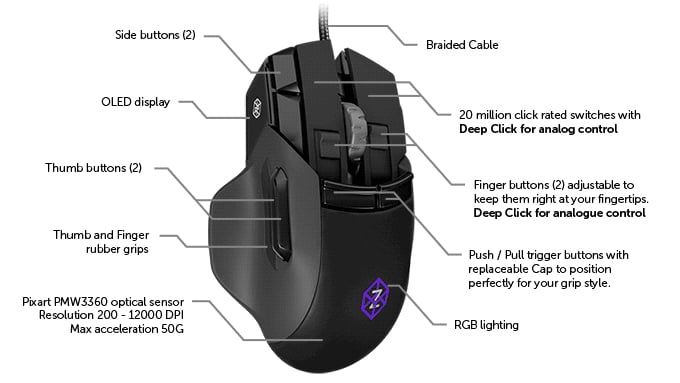
I suggest to look at picture[0] to follow this post, as the button layout is highly unusual
The mouse have 2 primary mouse buttons that have pressure sensing. Pressing hard Left actually triggers CTRL+Shift+LeftClick, so when I hardpress over link it opens it in a new tab and switches to it directly (as opposed to MMB click that opens it in the background)
There are two fingertip buttons (also pressure sensitive) that are at the base of primary buttons, so fingers have to curl to reach them. One is CTRL+C or CTRL+X if I press it with force, the other is CTRL+V or CTRL+V -> Enter if I press it with force.
Another two buttons (push/pull triggers) are at the base of those, but higher, and the middle of the finger rests over them. You press them not by curling your finger, but by pressing them down with the "undercnuckle" of the finger. Left one is ALT+TAB, where TAB gets released immidiately, but ALT is left held down until button is released. As long as the button is held, every 150 units of mouse movement to either direction simulates arrowkey press in said direction, allowing me to pick a program I want to alt tab to. The other is CTRL+W if pressed without mouse movement (to close tab), or CTRL+Arrow (same fashion as ALT+Arrow on the left button) to select active tab in the browser. Those two buttons also works together. Pressing them together invokes Windows+D or Alt+F4, depending if I press left or right button first. The great thing about those two buttons is that hand or fingers dont have to change their position at all. Those two buttons also can be pulled from underneath. Left one is CTRL+Shift+T to reopen last closed tab, and the other is to recalibrate gyro to 0 (tends to drift a bit, usually once a week it drifts 2 degrees, which is enough to start triggering my tilt keybind).
Two more buttons next to the side of Left Mouse Button, which are pressed by index finger having to move over them, are bound to F10 and F11, and I use them in games/work programs only.
Finally, two remaining thumb buttons are of course Back and Forward. Kinda wish for more thumb buttons tho.
For some games I also use tilt functions to bind to keys (the mouse have gyro and is made to be tilted, with magnetically held plates at the bottom, allowing you to choose the amount the mouse physically tilts (left-right) all the way to 0.)
Tilting the mouse to the right for more than 30 degrees makes it enter config mode, where with 2 buttons you can select what the little OLED (black&white) displays (current XYZ angles, force applied to one of 5 pressure buttons, DPI [and change it by mousewheel], profile name, spinning cube), change active profile (with subprofiles) or start recalibration (lay flat, wait 3 sec).
The mouse have vibrations that allow me to tell whether force or tilt action has been executed, but my choosen keybinds make it obvious anyway.
--
I used the mouse at home for gaming, and was carying it to work every day (I work with 3D software with terrible fixed keybinds, which I mapped to the mouse) for a month before I bent over and bought another one.
Its the best mouse I ever owned, but its not all flawless. Working with software is a pain and unintuitive. They released new version which strips control from you, or you can enter "expert mode" which throws you back into the original. Theres no way to display custom images on the OLED, and text can only be changed to predefined strings on predefined triggers, forget about putting a clock there. Updates are rare and featurewise empty.
Support is helpfull when the desired function is doable with current software and actually provide a guide how to structure the profile to achieve the goal, but for my request to be able to display clock or text pulled from outside the program the answer was "we informed the developers, mby in next version."
The magnetically held plates are nice way to easily set up your mouse, but after I found my optimal settings for it I havent changed it then. The downside of it is it being magnetic, so in the rare ocasion where I have to work on site, and only metal table is avaiable, the mouse gets stuck to the table. A mousepad solves this.
[0] picture: https://theawesomer.com/photos/2016/07/swiftpoint_z_gaming_m...
[1] mouse: https://www.swiftpoint.com/products/gaming-mice-swiftpoint-z